How to Time Block in Notion (Free Template and Examples)
Learn how to time block in Notion with a free setup you can build in minutes, three example days and a ready-made time blocking template when you want more.
 Jithin Rajiv4 min read
On this page
To time block in Notion, give every task a start and finish time, then view those tasks on a timeline or calendar for the day. The method is simple: list your tasks, estimate how long each takes, place fixed commitments first and fit focus work around them. You can build a free Notion time blocking template in about ten minutes using the setup below.
What is time blocking?
Time blocking means assigning tasks to specific blocks of your day instead of keeping an open to-do list. A list tells you what to do. A time block tells you when. That makes it easier to see whether your plan fits the hours you really have.
A free Notion time blocking template you can build
Create a Tasks database with these properties:
| Property | Type | Why you need it |
|---|---|---|
| Name | Title | What the task is |
| Time block | Date, with end time | Start and finish |
| Priority | Select | High, Medium, Low |
| Done | Checkbox | Hide finished work |
Then add three views:
- Inbox: tasks with no Time block yet.
- Today: tasks with a Time block today, sorted by start time.
- Calendar: a day or week calendar view so you can see blocks laid out.
That is a working time block planner for free. If you would rather start with something prepared, the free Daily Planner, Weekly Planner & Monthly Planner gives you a connected planning dashboard.
How to time block in Notion, step by step
- Capture everything in the Inbox. Add tasks by name only. Do not schedule yet.
- Estimate each task. A rough guess is fine.
- Place fixed commitments first. Meetings, classes and appointments go in before anything else.
- Block focus work next. Put your most important task in the time of day when you concentrate best.
- Add breaks and buffers. Leave gaps between blocks. Plans without them rarely hold.
- Review at the end of the day. Move unfinished tasks to tomorrow or remove them.
Notion time blocking examples
A freelancer's day
| Time | Block |
|---|---|
| 9:00 to 11:00 | Client project, focused work |
| 11:00 to 11:30 | Emails and messages |
| 1:00 to 2:00 | Lunch and a walk |
| 2:00 to 4:00 | Second client project |
| 4:00 to 4:30 | Admin and invoices |
A student's day
| Time | Block |
|---|---|
| 8:00 to 10:00 | Lectures |
| 10:30 to 12:00 | Revision |
| 2:00 to 3:30 | Assignment |
| 4:00 to 4:45 | Reading |
A founder's day
| Time | Block |
|---|---|
| 9:00 to 10:30 | Deep work on the product |
| 10:30 to 11:30 | Customer calls |
| 1:00 to 2:00 | Planning and hiring |
| 3:00 to 4:00 | Open slot for surprises |
Notion time block template: Time Block Planner PRO
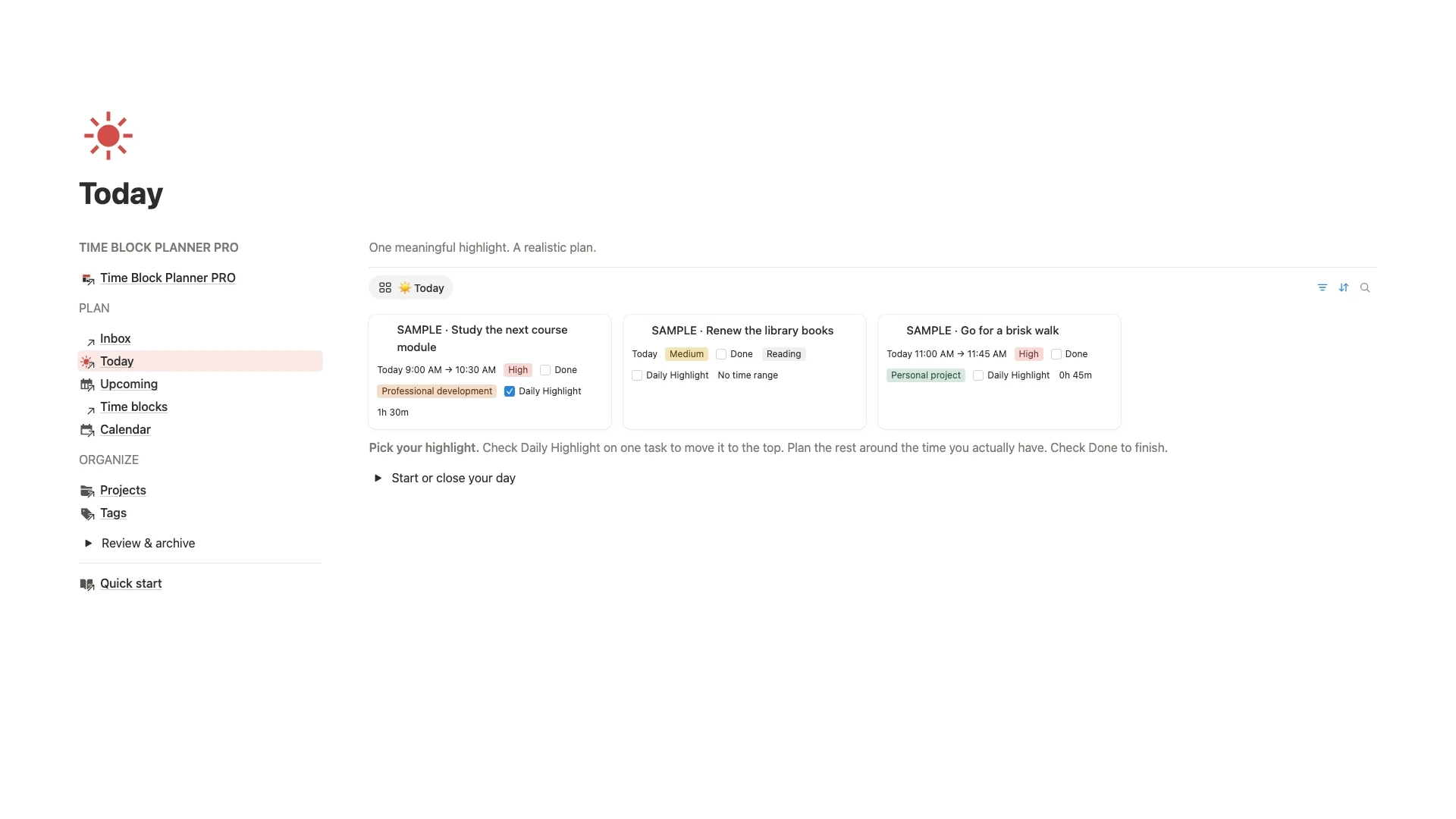
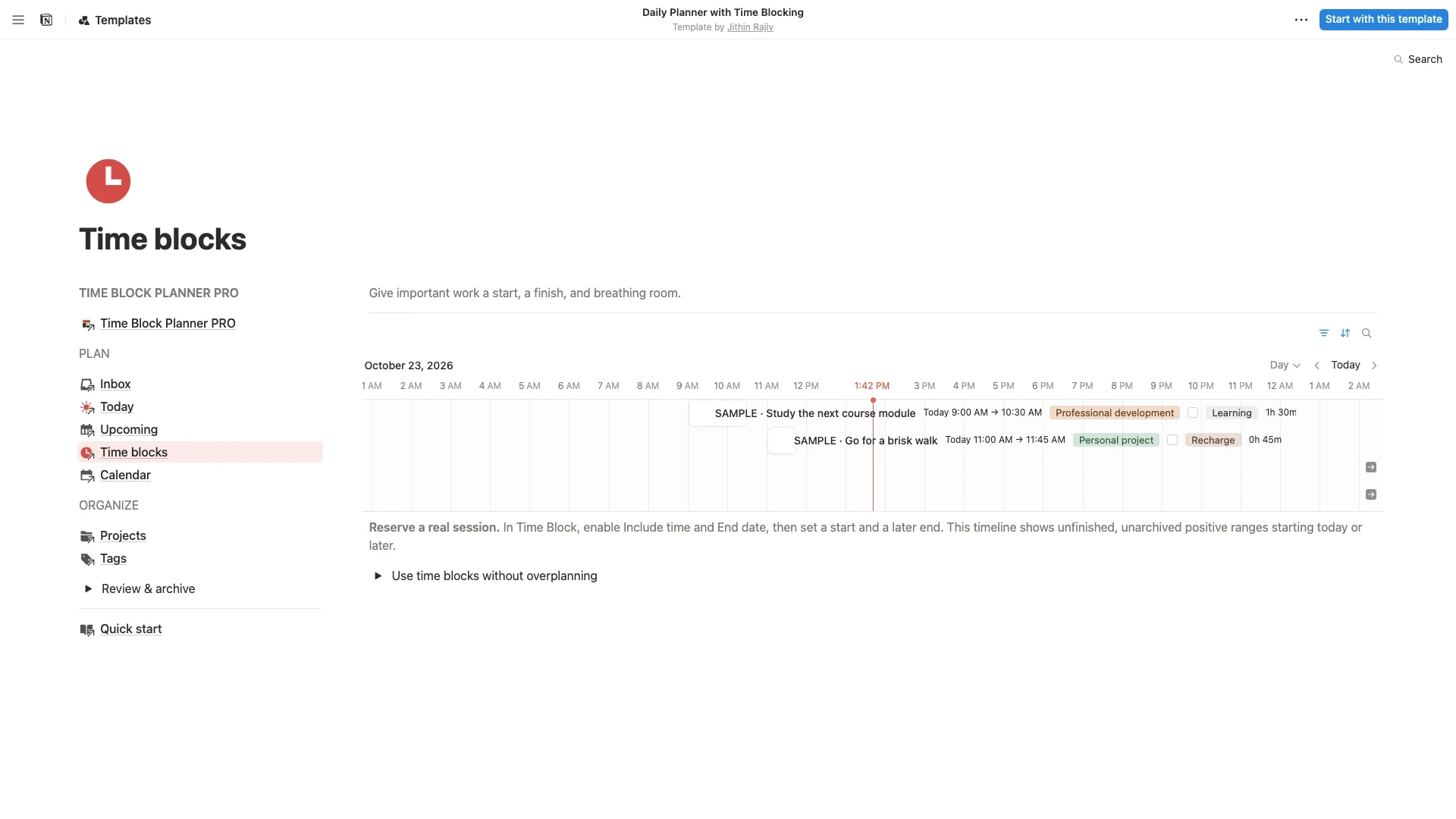
If you want the system already built, the Time Block Planner PRO is a paid Notion time blocking template. You capture tasks in an Inbox, choose one Daily Highlight and plan sessions on a timeline. It also shows a weekly planning snapshot, with an optional weekly time budget to compare your plan with your capacity.
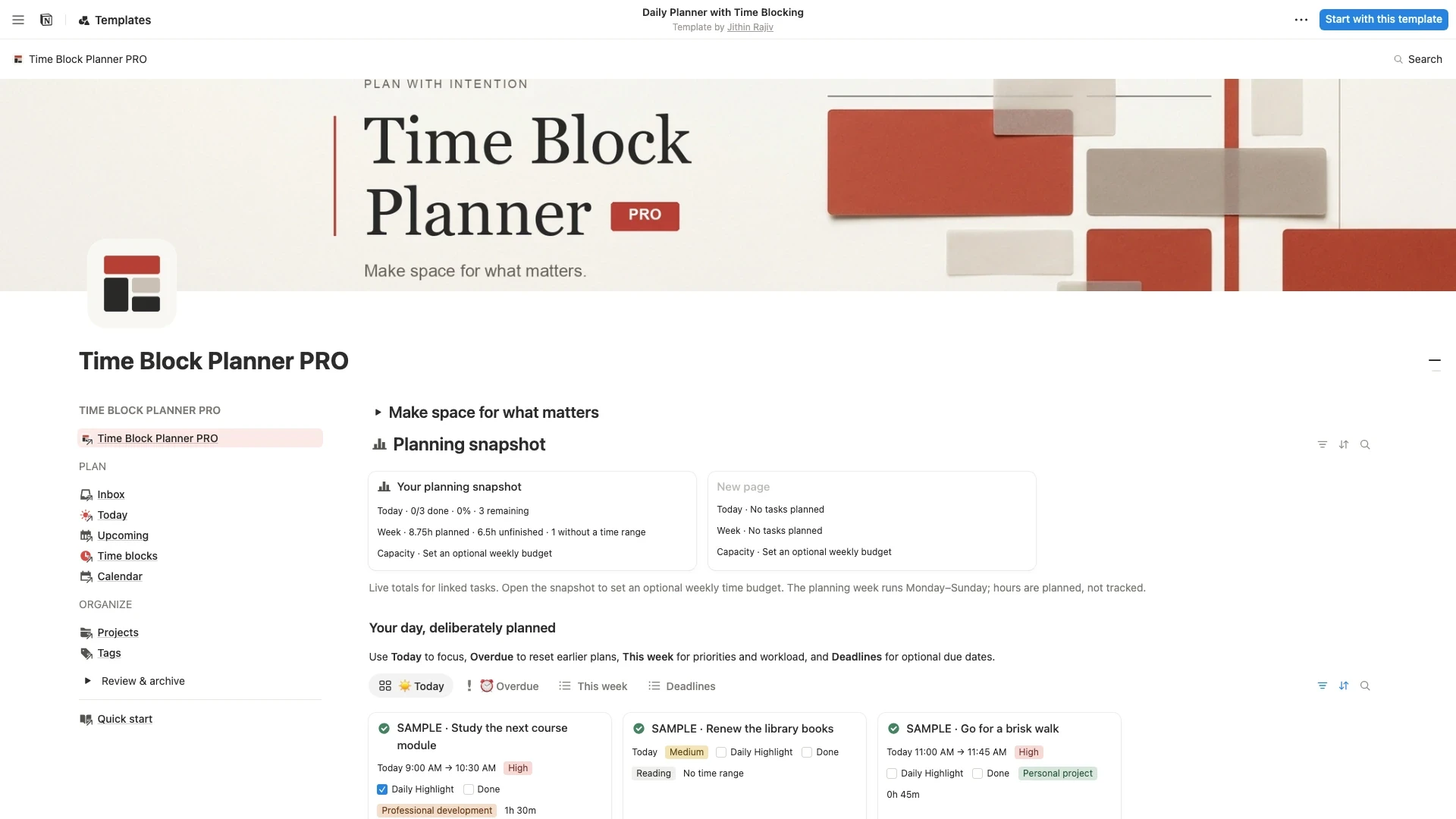 Notion Planner Templates$6.30
It is a planning system, not an automatic scheduler. You choose the tasks and the times.
Tips for time blocking that lasts
- Block fewer hours than you have. Leave room for the unexpected.
- Use one Daily Highlight. Pick the single task that would make the day a success.
- Batch small tasks. Group emails and admin into one block.
- Keep blocks flexible. Moving a block is normal. Drop it only if it no longer matters.
- Review weekly. If blocks keep overrunning, estimate longer next time.
Time blocking questions
How long should a time block be? Between 30 and 120 minutes works for most tasks. Shorter blocks suit admin, longer ones suit focused work.
Can I time block in Notion without a template? Yes. A database with a date range and a calendar view is enough, as shown above.
What if my plan falls apart? Move the blocks and carry on. The point is to make a realistic plan, not a perfect one.
Related guides
Written by
Jithin Rajiv
Notion templates, free tools and widgets for getting work done, by Jithin Rajiv.