Free Notion Second Brain: Build One With Four Databases
You can build a simple Notion second brain yourself with four databases. Here is how, and when a ready-made template may save you the setup time.
 Jithin Rajiv2 min read
On this page
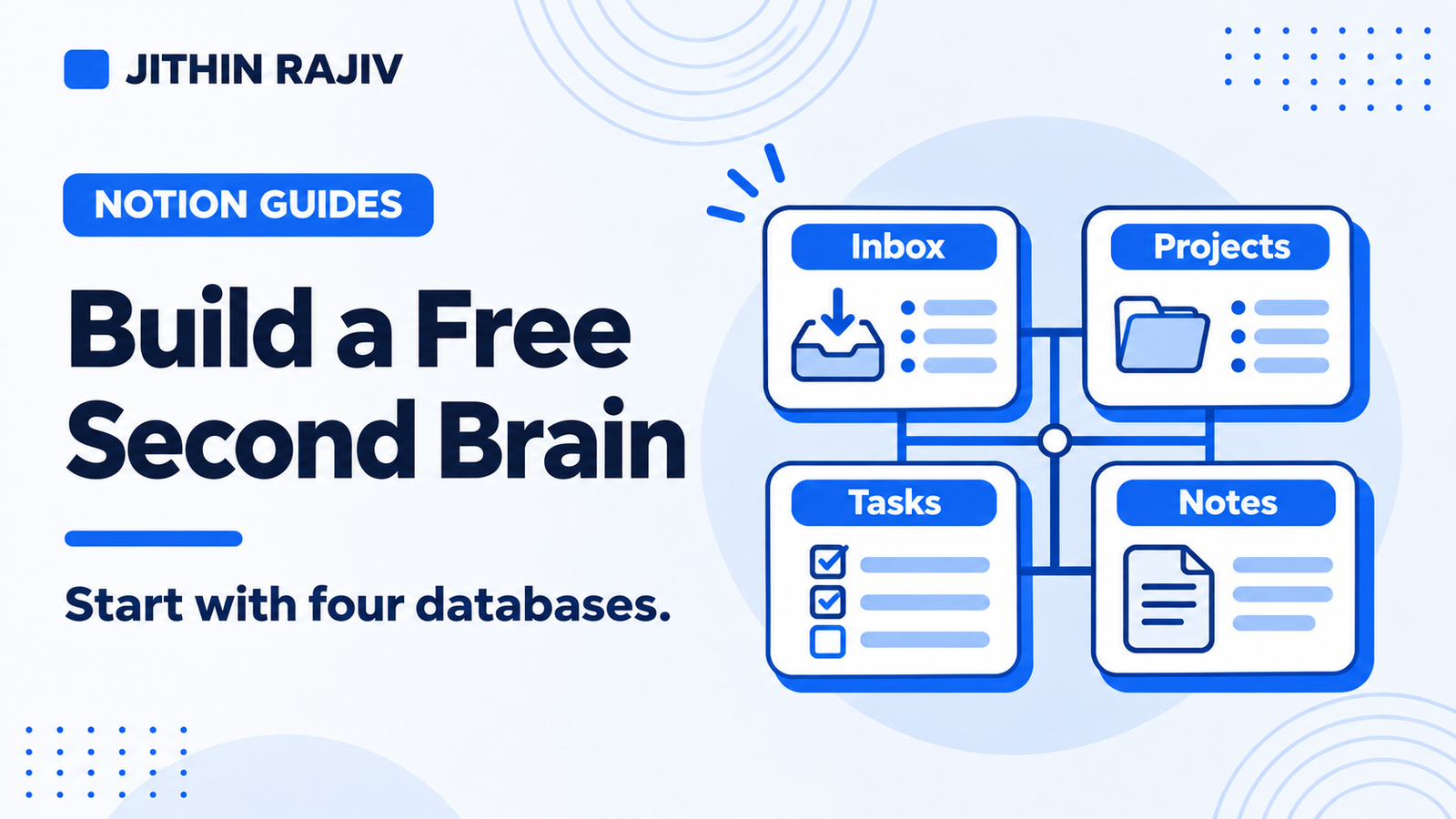
Many people search for a free Notion second brain template. The good news is that you can build a useful second brain yourself, with nothing more than a free Notion account and four linked databases. It takes some setup, but you will understand every part of it.
What you need
Four databases:
- Inbox
- Projects
- Tasks
- Notes
Step 1: Inbox
Create a database with a Name, a Type (Idea, Task, Link), a Captured date and a Processed checkbox. Everything you want to remember goes here first, and a title is enough.
Step 2: Projects
Create a database with Name, Status (Active, Paused, Done) and an optional Deadline. A project is an outcome with a finish line, such as "Publish three case studies."
Step 3: Tasks
Create a database with Name, Status (To Do, Next, Doing, Waiting, Done), a Project relation, a Do Date for when you plan to work, and a Due date for real deadlines. Add a view filtered to Next actions and one for Today.
Step 4: Notes
Create a database with Name, a Project relation, a Topic tag and a short Summary field. Link each note to the project it supports.
Step 5: Connect them
The connections are what make it a second brain instead of four lists:
- Tasks link to Projects
- Notes link to Projects
- Inbox items link to whatever they became, and get ticked Processed
Step 6: Add a weekly habit
Once a week, empty the Inbox, check that each active project has a next action, and archive what is finished.
Where a ready-made template helps
A DIY setup is a great way to learn. It also takes time to design the databases, properties, views and dashboards, and to write notes on how to use them. A template can save that effort if you would rather start from a working system.
Second Brain OS is a paid Notion template that expands on this basic idea with 16 connected databases, covering tasks, projects, goals, areas, notes, a resource library, highlights, people, a daily journal and weekly reviews, plus Home, My Day, PARA and GTD dashboards. It also includes a Get Started guide, setup and cleanup documentation and example records. You can begin with only the Inbox, Projects, Tasks and My Day, which mirrors the four-database start above.
It has limits worth knowing: inbox processing is manual, recurring tasks are not generated, calendar, email and reading-app integrations are not included, and there is no built-in AI assistant.
30% off Notion Planner Templates$20.30
Which route should you take?
- Build it yourself if you enjoy designing systems, want to learn Notion databases and have the time.
- Start from a template if you want a connected structure and documentation ready to use.
Either way, the habits matter more than the tool: capture quickly, link notes to projects, choose a few tasks a day and review weekly. For help judging templates, see how to choose a Notion second brain template.
Related guides
Written by
Jithin Rajiv
Practical templates, free widgets, and useful guides for a workspace that works for you.