PARA Method in Notion: Projects, Areas, Resources, Archive
A plain-language guide to the PARA method and how to set it up in Notion, with examples of what belongs in each of the four categories.
 Jithin Rajiv2 min read
On this page
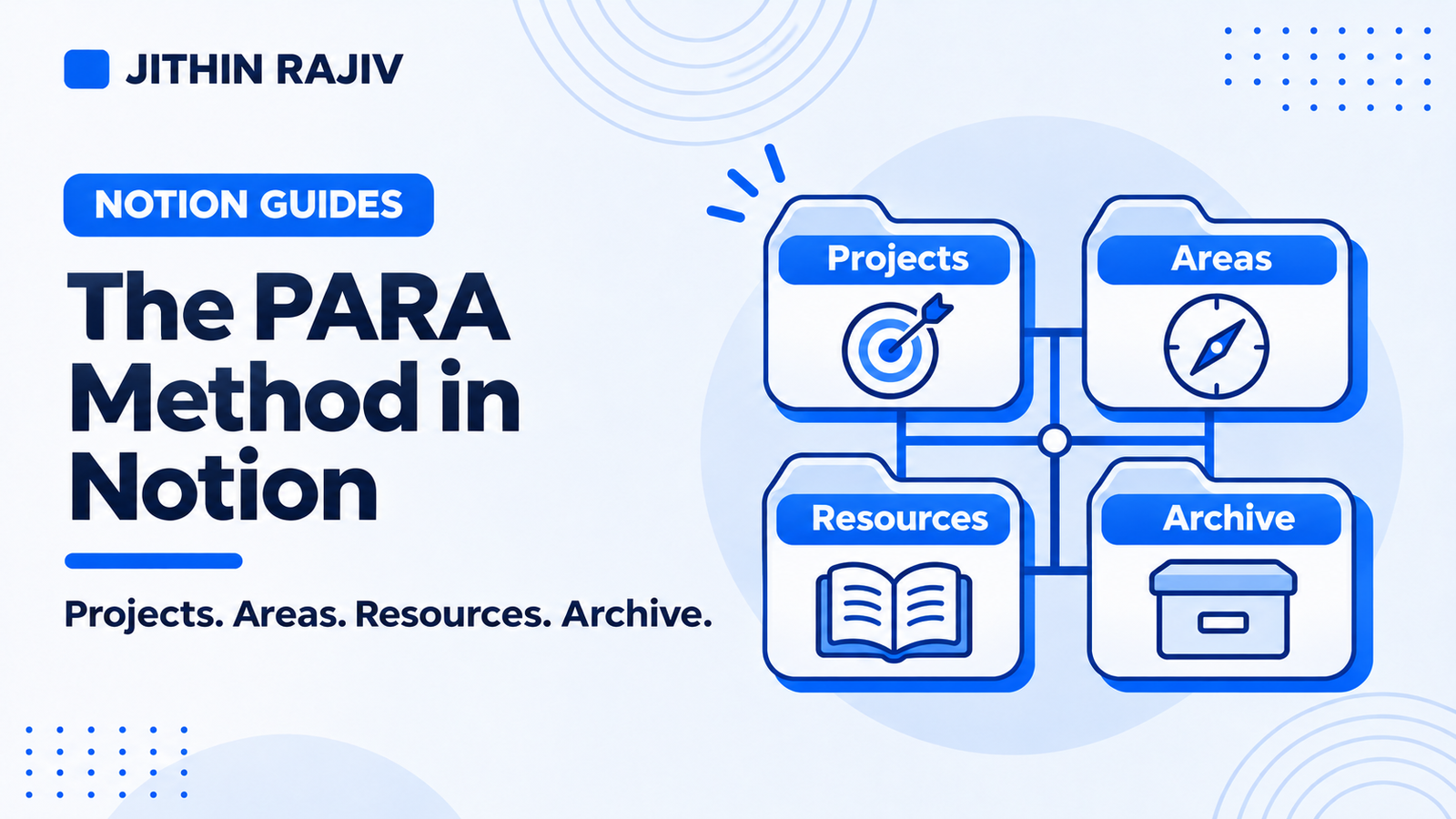
PARA is a way of organizing information by how useful it is right now. The name stands for Projects, Areas, Resources and Archive. It is widely used for a Notion second brain because it answers one question: "where does this belong?"
PARA comes from Tiago Forte's second brain work. This guide is an independent explanation and is not affiliated with or endorsed by him.
The four categories
Projects
A project is an outcome with a finish line and usually a deadline. "Publish three case studies" is a project. "Marketing" is not.
Examples: plan a trip, launch a website, finish a course assignment.
Areas
An area is an ongoing responsibility with a standard you maintain. It has no end date.
Examples: health, finances, a client relationship, your career.
Resources
A resource is a subject or interest that may be useful later. It supports projects and areas but is not itself a commitment.
Examples: articles on design, notes on a book, research on a tool.
Archive
The archive holds inactive material from the other three: finished projects, retired areas and resources you no longer use. Keeping it out of sight reduces clutter without deleting anything.
Why PARA works for action
Sorting by topic ("everything about marketing") often leaves notes unused. Sorting by usefulness puts what you need now, your projects, front and center, and lets everything else support them.
How to set up PARA in Notion
- Create databases for Projects and Areas. Give each a status so you can tell active from finished.
- Create a Notes database and a Resources library, and link them to projects and areas with relations.
- Add tasks to a Tasks database and link each to a project or area.
- Add an Archive status or view so finished items drop out of daily views.
- Build a dashboard that shows active projects, areas and recent notes together.
The linking matters most. A note connected to a project is far easier to find and use than a loose page.
A worked example
You capture "Refresh my portfolio."
- It becomes the project "Publish three case studies."
- Its next task is "Outline the first case study."
- Your career is the area it supports.
- Research notes and a few useful articles are resources linked to the project.
- When the project is finished, it moves to the archive, and the notes stay available for next time.
PARA and GTD together
PARA tells you where information lives. GTD, a task-management method, tells you what to do next. They complement each other, and many people use both. See how to use GTD in Notion.
PARA in Second Brain OS
Second Brain OS includes a PARA Dashboard that organizes work into Projects (outcomes with a finish line), Areas (ongoing responsibilities and standards), Resources (supporting knowledge) and Archive (inactive material where archiving is supported). Tasks, notes and references connect to project outcomes.
One note: archiving does not automatically archive related records, so you archive each item deliberately.
30% off Notion Planner Templates$20.30
Related guides
Written by
Jithin Rajiv
Practical templates, free widgets, and useful guides for a workspace that works for you.