Notion Second Brain: What It Is and How to Build One
A Notion second brain keeps your notes, projects and tasks in one connected workspace. Learn what it is, what it needs, and three ways to build one: free, from a template or with AI.
 Jithin Rajiv4 min read
On this page
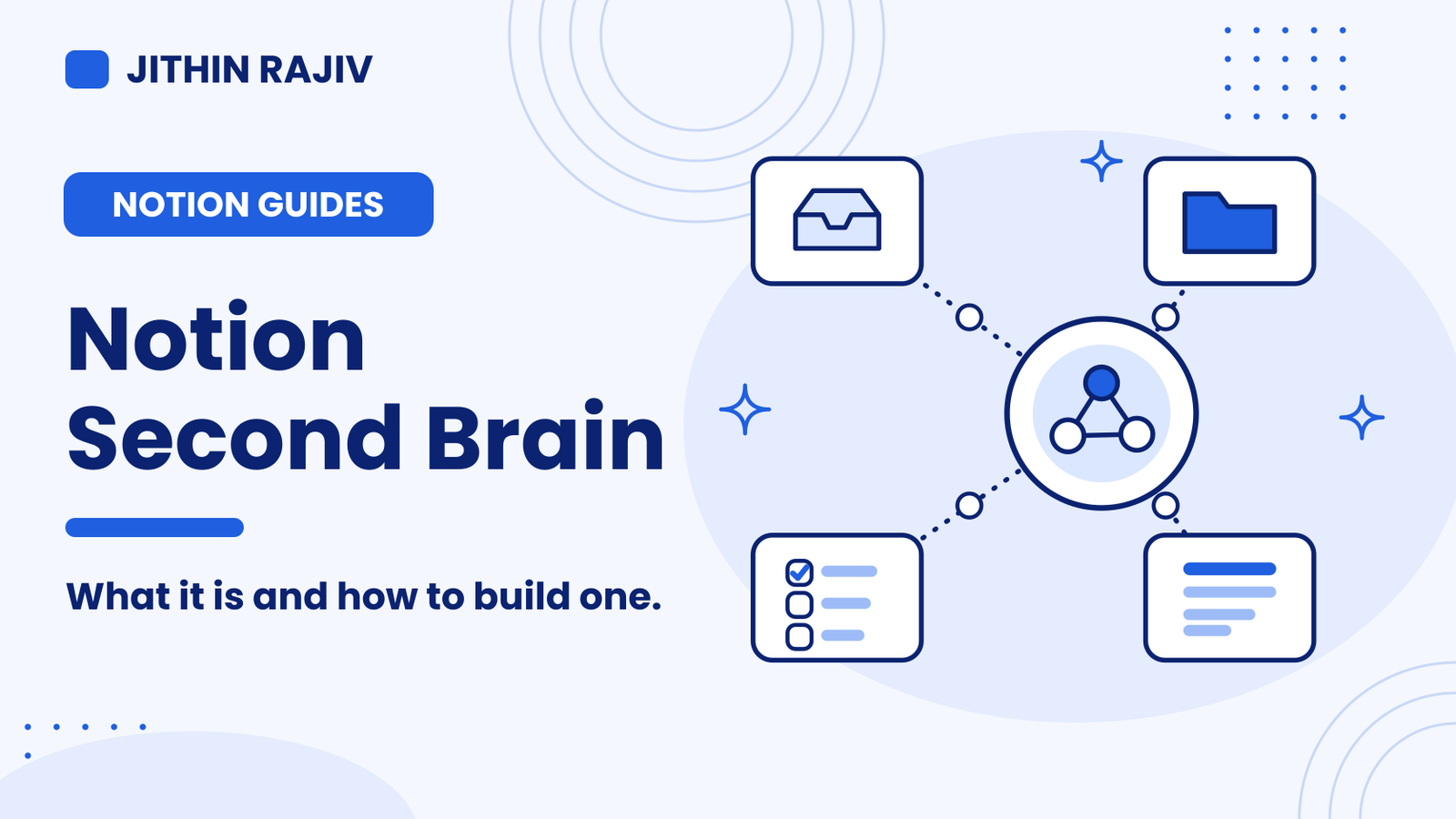
A Notion second brain is a system that keeps your notes, ideas, sources, projects and tasks in one connected workspace, so you can find what you saved and use it in your work. It is sometimes called a second brain in Notion, or a 2nd brain. You can build one for free with a few linked databases, start from a ready-made template, or add an AI assistant on top. This guide explains the parts, then helps you pick a route.
What is a second brain in Notion?
A second brain is a system for keeping ideas, notes and sources outside your head so you can find and use them later. Notion suits it because pages and databases can link to each other. A note can sit next to the project it supports, and a task can point to the research behind it.
The goal is not to save everything. It is to make what you save useful.
What every Notion second brain needs
Whatever you use, four parts do most of the work:
- Capture. One place where every idea, link and task lands first. A title is enough.
- Organize. A simple way to decide where things belong. Many people use the PARA method: Projects, Areas, Resources and Archive.
- Act. Tasks linked to projects, with a short list of what you will do today. Methods like GTD help here, and I cover them in how to use GTD in Notion.
- Review. A weekly check so the Inbox stays empty and old notes do not get lost.
If a setup is missing one of these, it tends to turn into an archive you rarely open.
Three ways to build a Notion second brain
| Route | Best for | Effort |
|---|---|---|
| Build it yourself | Learning how Notion databases work | Most setup |
| Start from a template | A connected system ready to use | Least setup |
| Add AI on top | Searching and summarizing what you already have | Depends on your setup |
Build one yourself, free
You need a free Notion account and four linked databases: Inbox, Projects, Tasks and Notes. Link notes and tasks to projects, and add a weekly review. The full steps are in how to build a free Notion second brain.
Start from a template
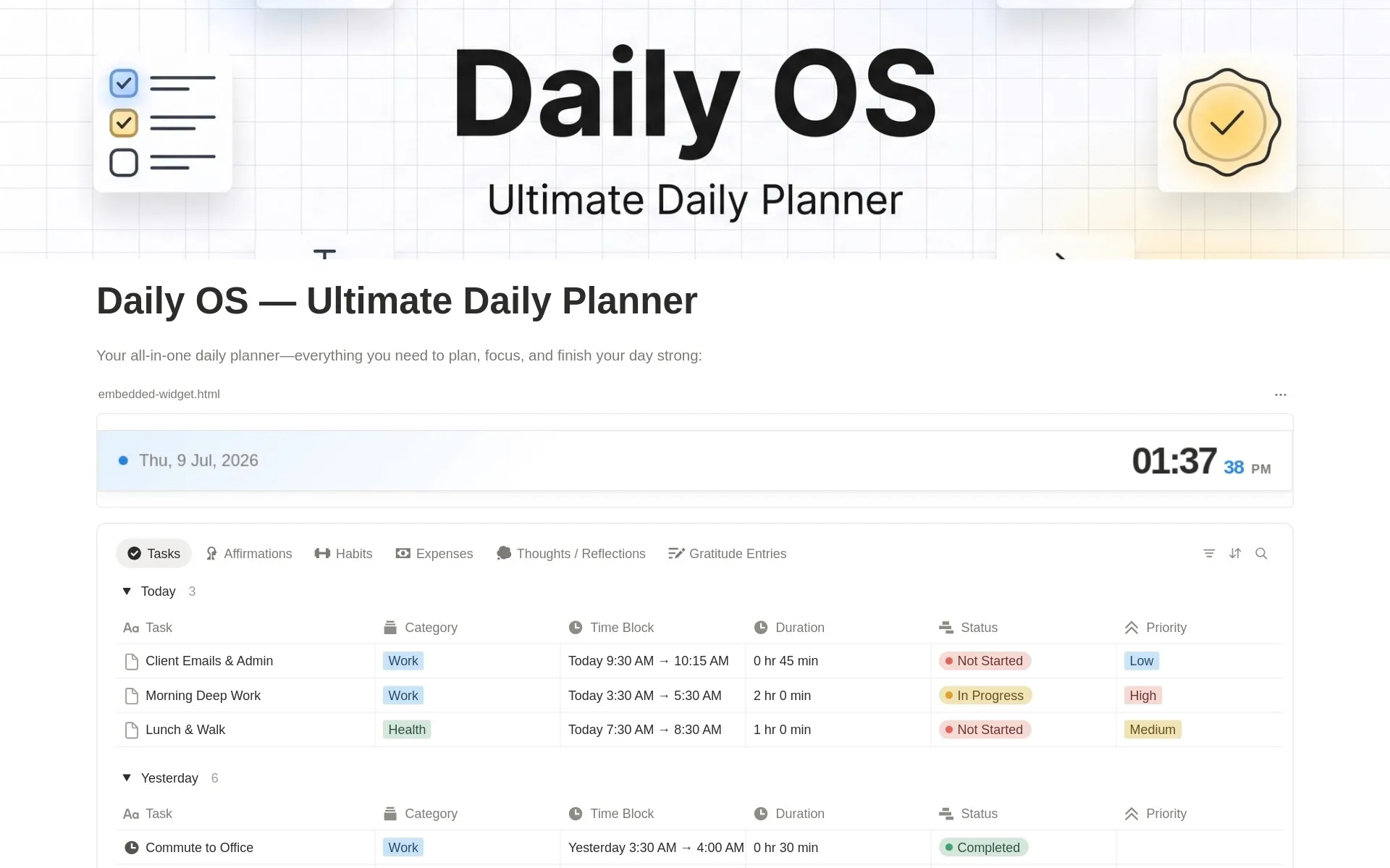
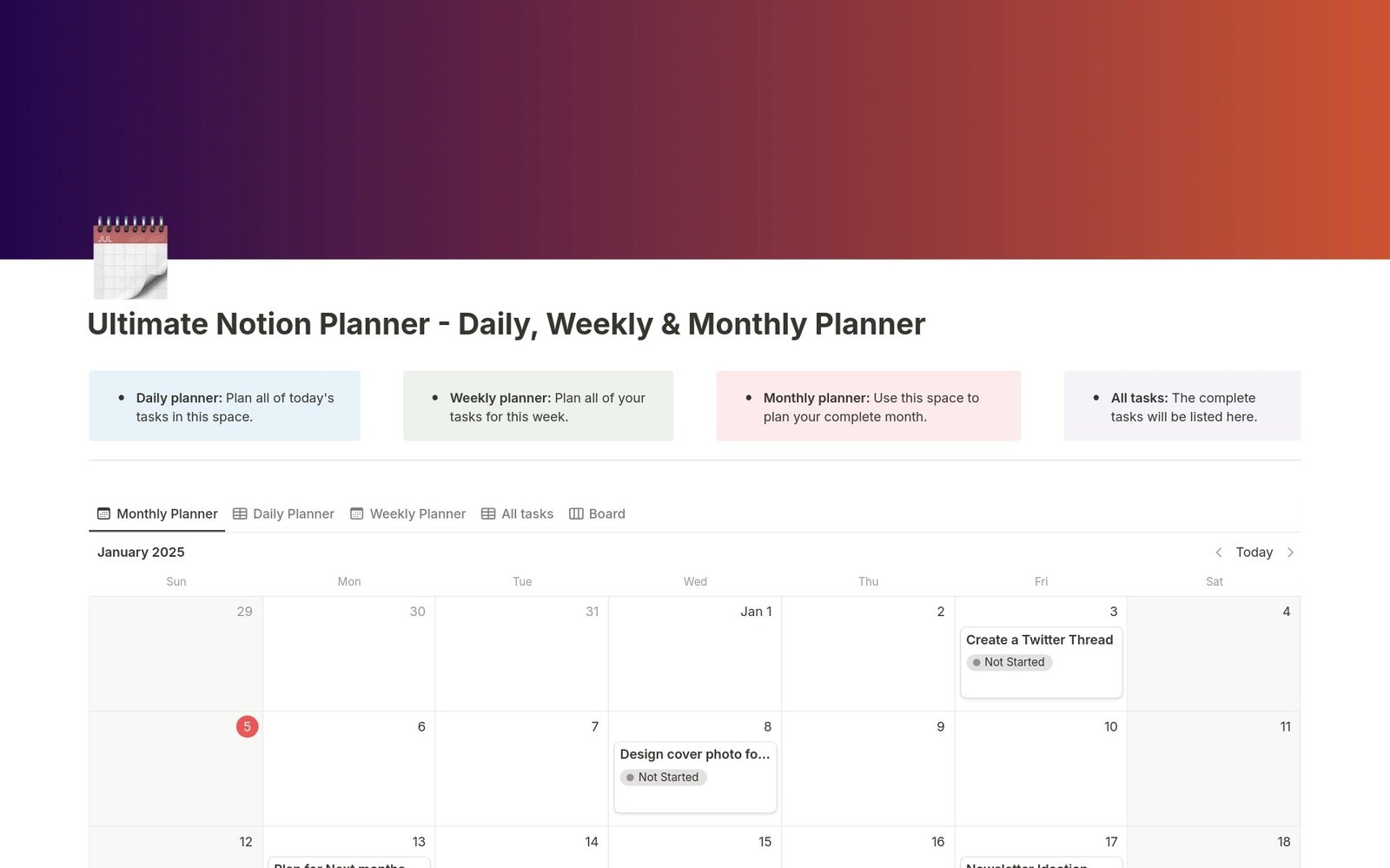
A template gives you the databases, views and dashboards already connected. Second Brain OS is a Notion second brain template I made with PARA and GTD dashboards, an Inbox, a My Day list and weekly reviews. It is a paid template, and its page lists what it does and does not include.
30% off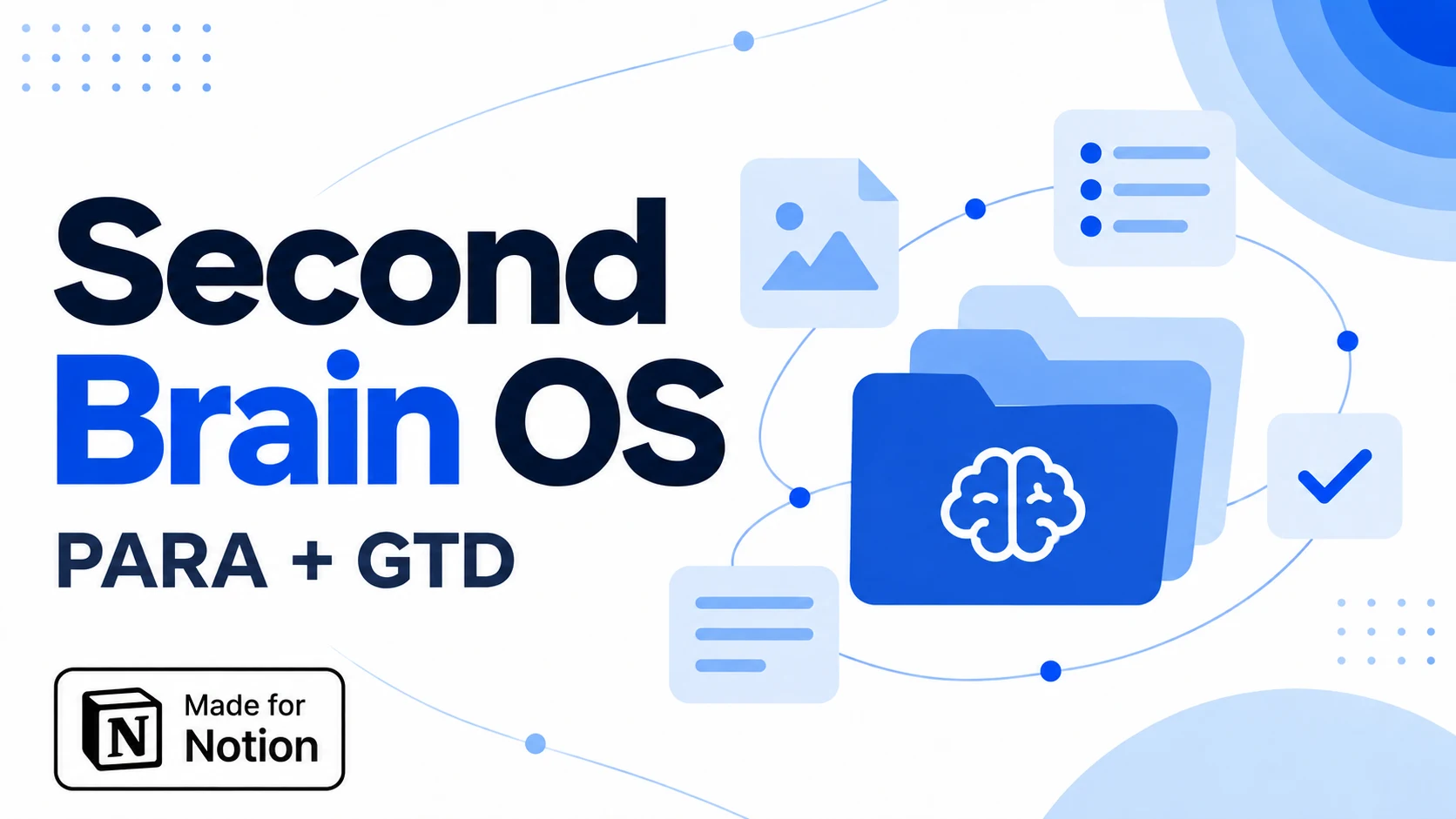 Notion Planner Templates$20.30
Not sure whether a template fits? Use the checklist in how to choose a Notion second brain template. If you have picked one, the setup guide walks through your first hour.
Add an AI layer
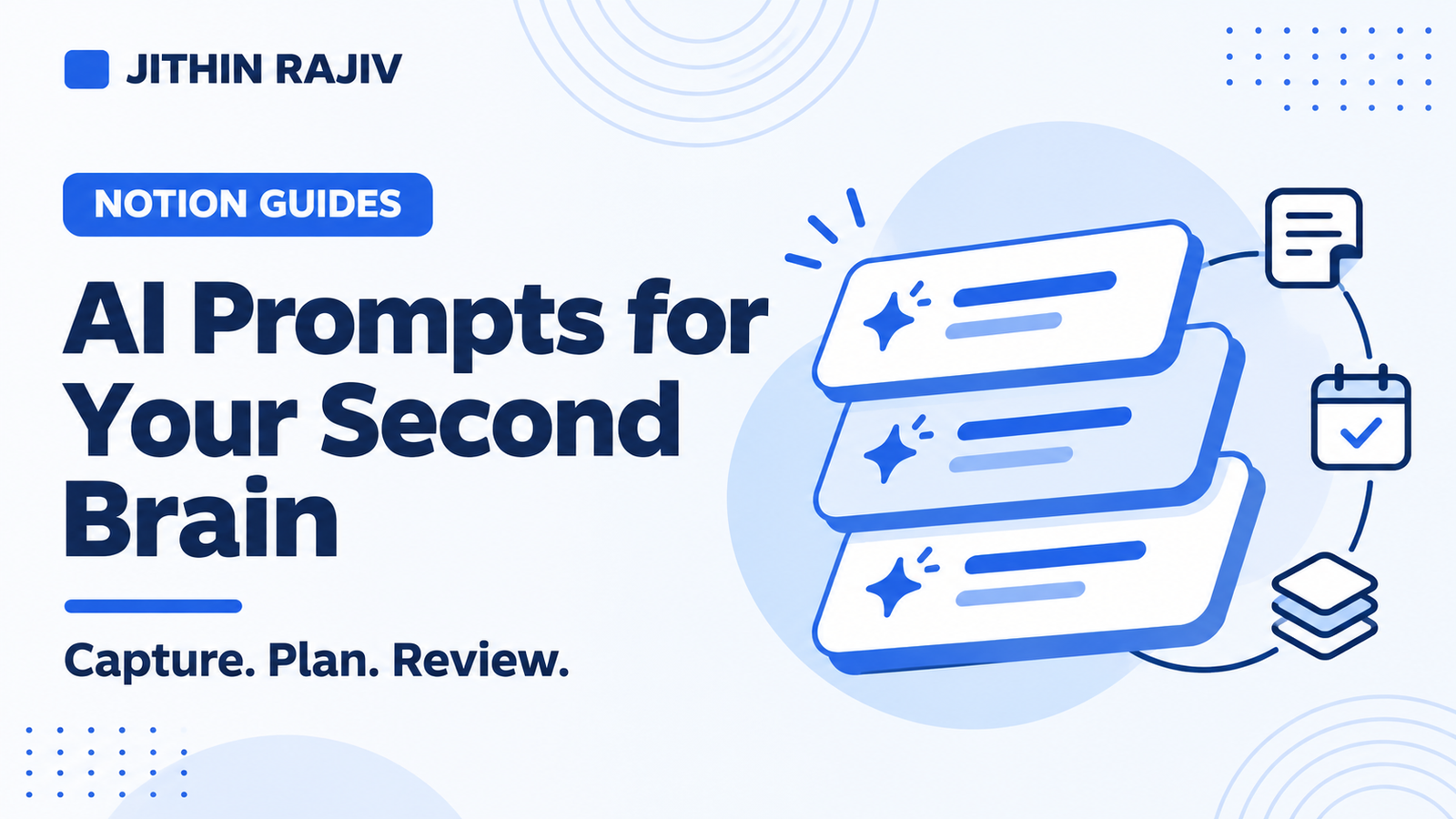
An AI assistant works best on top of a tidy system, because structure comes first. Read what Notion AI can and cannot do as a second brain, or the broader guide to an AI second brain in Notion. You can also connect Claude to Notion.
How to start in one hour
- Create an Inbox and capture five real things.
- Create a Projects database and add one active project.
- Link a note and a task to that project.
- Pick three tasks for today.
- Book 15 minutes at the end of the week to review.
Start with only these. Add dashboards and extra databases once you are using the basics.
Common mistakes
- Saving without linking. A loose note is hard to find later. Link it to a project or area.
- Building too much first. Many databases on day one are easy to abandon.
- Skipping the review. Without it, the Inbox fills and trust in the system drops.
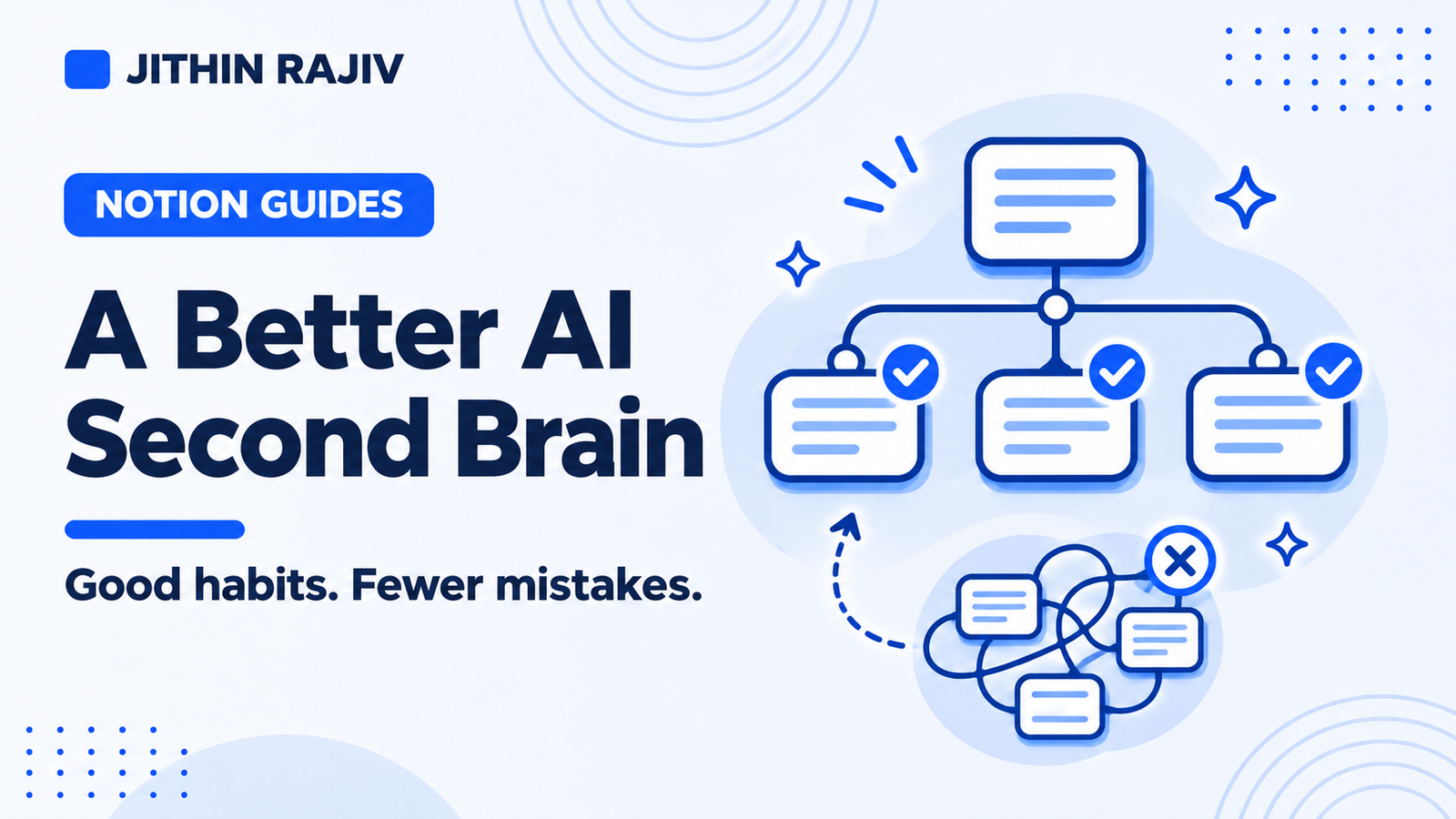
For more, see AI second brain best practices and common mistakes.
Which route should you choose?
- Choose the free build if you enjoy designing systems and have the time.
- Choose a template if you want to start working in the system today.
- Add AI once your notes and projects are already connected.
Whichever you pick, the habits matter more than the tool: capture quickly, link what you capture, choose a few tasks a day and review weekly.
More guides
Written by
Jithin Rajiv
Notion templates, free tools and widgets for getting work done, by Jithin Rajiv.